Features
Services & Reminders
Create services, set reminder intervals, and automate customer follow-ups.
Overview
Services are the core of ReturnNudge's automation. Each service represents something your business offers on a recurring basis. When you assign a customer to a service, ReturnNudge automatically tracks when their next reminder should be sent.
Creating a Service
- Navigate to Services in the sidebar.
- Click New Service.
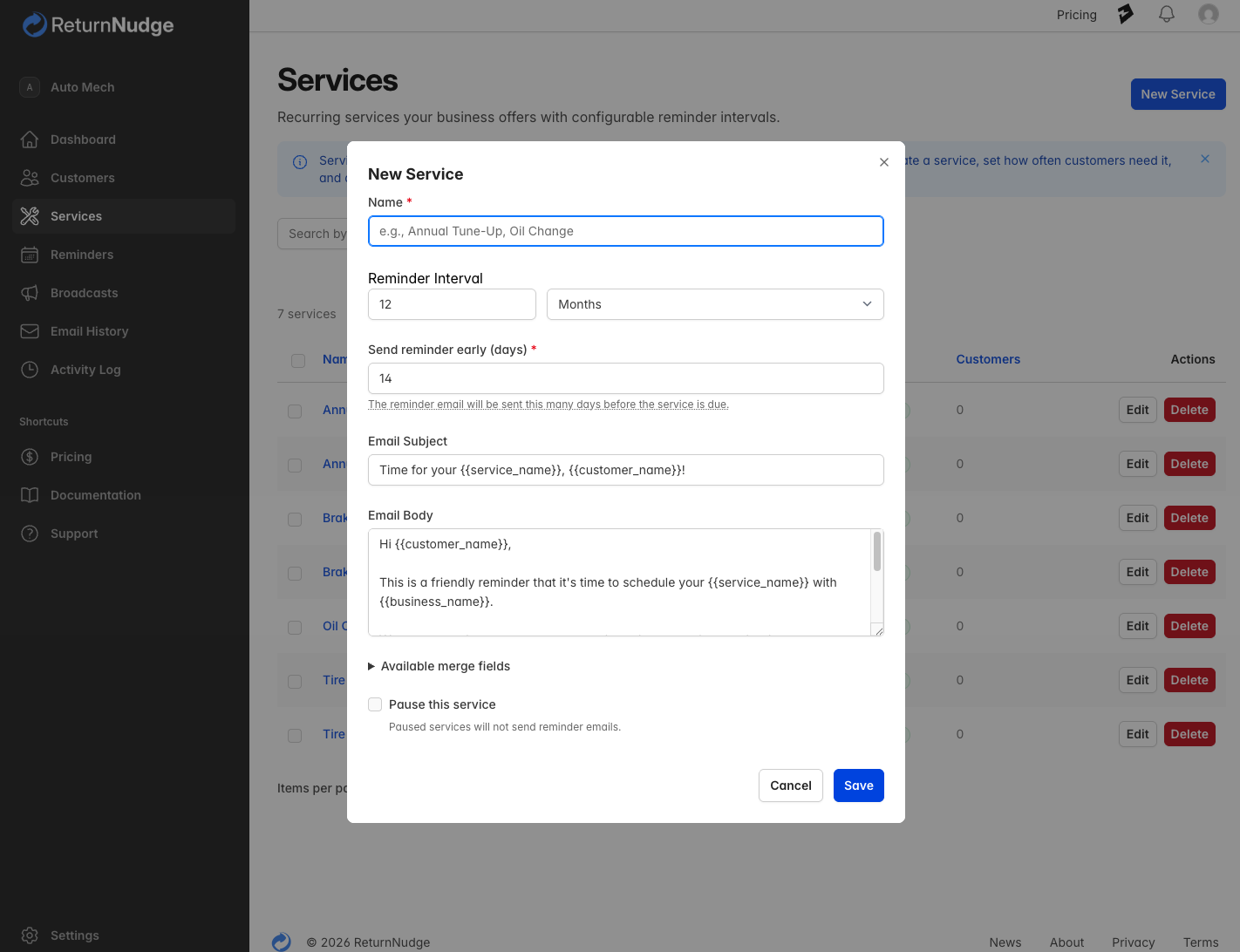
- Fill in the service details:
- Name — A descriptive name (e.g., "Annual Furnace Inspection", "6-Month Dental Cleaning")
- Reminder Interval — How often customers should return. Set a number and unit (days, weeks, months, or years). For example, "12 months" or "6 weeks".
- Reminder Offset — How many days before the due date to send the reminder email. For example, an offset of 14 means the email goes out 2 weeks before the service is due, giving customers time to book an appointment.
- Optionally customize the email template for this service:
- Email Subject — The subject line for reminder emails sent for this service.
- Email Body — The message body. Use merge fields like
{{customer_name}},{{service_name}},{{item_name}}, and{{business_name}}to personalize each email.
- Click Save.
How Reminders Work
When a customer is assigned to a service:
- The system calculates the next reminder date based on the start date (or last completion date) plus the reminder interval, minus the offset days.
- When the reminder date arrives, ReturnNudge sends an automated email to the customer.
- When the customer comes back and the service is marked as completed, the next reminder date is recalculated from the completion date.
Reminder Timeline Example
For a service with a 12-month interval and 14-day offset:
| Event | Date | Action |
|---|---|---|
| Customer enrolled with start date | Jan 15, 2026 | Next reminder set for Jan 1, 2027 (14 days before due date) |
| Reminder email sent | Jan 1, 2027 | Customer receives email |
| Customer completes service | Feb 1, 2027 | Next reminder set for Jan 18, 2028 |
Managing Services
Service List
The Services page shows all your created services along with:
- Reminder interval
- Reminder offset
- Status (Active or Paused)
- Number of customers enrolled
You can search services by name and sort by any column.
Service Detail Page
Click on a service to see:
- Service Details — Interval, offset, status, and customer count
- Email Template — The subject and body template configured for this service
- Assigned Customers — A searchable table of all customers enrolled in this service, showing their start date, next reminder date, last completed date, status, and subscription status
From the detail page you can:
- Assign a customer — Enroll additional customers in this service
- Edit or delete the service
- Mark completed, edit, or remove individual customer enrollments
Assigning the Same Service Multiple Times
A customer can have the same service assigned more than once by using the Item Name field to identify each item. For example, a customer with two cars can have "Annual Car Service" assigned twice — once for "2020 Toyota Camry" and once for "2022 Honda Civic". Each assignment has its own independent reminder cycle.
How It Works
- Recurring services — The combination of service and item name must be unique. If a customer already has "Annual Service" with no item name, you must provide an item name (e.g., "Car 1") to assign the same service again.
- One-off services — Multiple assignments are allowed, but each must have a unique item name so they can be distinguished. If an active (non-completed) assignment exists without an item name, you'll be prompted to add one.
Tip: Use descriptive item names that help you and your customer identify what the service is for — e.g., "Upstairs HVAC Unit", "2023 Trek Domane", "Front Yard".
Completing a Service
When a customer returns for their service:
- Go to the customer's detail page, the service detail page, or the Reminders page.
- Find the service entry and click Mark Completed.
- The completion date is recorded and the next reminder date is automatically recalculated based on the completion date.
For recurring services, you'll see a confirmation message showing when the next reminder is scheduled. For one-off services, the service is marked as done with no further reminders.
Every completion is permanently recorded in the Service History, giving you a full chronological record of all completions across your customers. You can also see a customer's completion timeline on their detail page.
Important: After a reminder email is sent, the customer will not receive another reminder until the service is marked as completed. Completing the service resets the cycle and schedules the next reminder.
Upcoming Reminders Page
The Reminders page shows all scheduled service reminders across your customers, so you can see at a glance who's due for service.
Default View
By default, the page shows reminders due within the next 90 days. This keeps the list focused on what needs attention soon.
- Show all — Click the "Show all" link to see all future reminders, regardless of date. This preference is maintained while you stay on the Reminders page (changing filters, group by, or pagination keeps showing all).
- Search — Searching for a customer name automatically shows all their reminders, bypassing the 90-day window.
Filtering and Grouping
- Search — Filter by customer name, email, or phone
- Service filter — Show reminders for a specific service only
- Date range — Set a custom From/To date range
- Group by — Toggle between grouping by date (default) or by service
Marking Completed from Reminders
You can mark a service as completed directly from the Reminders page without navigating to the customer's detail page. After marking completed, you'll stay on the Reminders page with a confirmation message.
One-Off Services
Not every service repeats. A one-off service sends a single reminder and then stops — no further reminders are scheduled after the service is completed.
When to Use One-Off Services
- A bike shop sells a new bike and wants to remind the customer to come back in 3 months for a free first service
- A mechanic wants to remind a customer about a break-in service 6 months after buying a new vehicle
- A veterinarian needs a single follow-up reminder 2 weeks after a spay/neuter procedure
- A lawn care company wants to check on new seeding after 6 weeks
How to Create a One-Off Service
- Navigate to Services and click New Service (or edit an existing service).
- Check the One-off service checkbox.
- Set the reminder interval — this determines how long after the start date the reminder will be sent.
- Set the reminder offset — how many days before the due date to send the email.
- Click Save.
Assigning One-Off Services Multiple Times
A customer can have the same one-off service assigned multiple times. For example, if a customer buys a new bike every few months, you can assign "New Bike First Service" for each purchase. Each assignment must have a unique Item Name so you can tell them apart (e.g., "2026 Trek Domane", "2026 Specialized Roubaix").
One-Off Reminder Timeline
For a one-off service with a 3-month interval and 14-day offset:
| Event | Date | Action |
|---|---|---|
| Customer enrolled with start date | Jan 15, 2026 | Next reminder set for Apr 1, 2026 (14 days before due date) |
| Reminder email sent | Apr 1, 2026 | Customer receives email, reminder cleared |
| Customer completes service | Apr 15, 2026 | No new reminder scheduled — service is done |
The key difference from recurring services: after a one-off service is marked as completed, the reminder cycle ends. No further emails will be sent for that customer-service assignment.
Pausing a Service
You can pause a service to temporarily stop all reminders for that service across all enrolled customers:
- Edit the service and check the Paused checkbox.
- While paused, no reminder emails will be sent for this service.
- Uncheck the box to resume reminders.
This is useful for seasonal services or if you need to temporarily halt reminders.
Resubscribing Customers
If a customer has unsubscribed from a specific service's reminders, you can re-enable them:
- Go to the customer's detail page or the service detail page.
- Find the service with the "Unsubscribed" status.
- Click Resubscribe.
The customer will begin receiving reminders for that service again.
Bulk Operations
From the Services list, admins can select multiple services using the checkboxes and perform bulk actions:
- Bulk Delete — Remove selected services and all associated customer enrollments
Warning: Deleting a service removes all customer enrollments and reminder history for that service. This action cannot be undone.